
Looking for the best video editing app for iPhone? Compare the 8 best free and paid iPhone video editors for YouTube, Reels, TikTok, and professional editing in 2026. Your iPhone can shoot 4K HDR footage that looks better than what most YouTubers were filming on actual cameras five years ago. Cinematic mode, slow-mo, the works — it’s all sitting in your pocket.
So why does the actual editing part still feel so confusing?
Open the App Store and search “video editor” and you’ll get buried under a hundred options in seconds. Some of them are loaded with pro-level tools that make your head spin the moment you open them. Others are so basic you’ll outgrow them in a week. Pick the wrong one, and you’ve burned an evening, maybe a subscription fee too, and you’re right back to square one.
Here’s the thing though — there’s no single “best” app for everyone. I’ve tried most of these apps across different projects (Reels, YouTube videos, the occasional client edit), and what worked great for a 30-second Instagram clip felt completely wrong for a longer YouTube video.
So instead of giving you one winner and calling it done, I’m breaking down 8 of the best video editing app for iphone I’ve actually used or tested in 2026 — who each one is really built for, where they fall short, and which one deserves a spot on your home screen.
Let’s get into it.
How I Picked These Apps
I didn’t just go by App Store ratings or download numbers — half of those are inflated anyway. I judged each app on things that actually matter once you’re knee-deep in an edit:
- Ease of Use — Can you actually finish a project without watching three tutorial videos first? Apps that let you just… start editing, scored higher with me.
- Editing Features — The real toolbox stuff: Multi-track editing, trimming and splitting, color correction, transitions, motion effects and keyframes, green screen support, speed control, text and titles, audio editing, and auto captions.
- Export Quality — Doesn’t matter how good your edit looks on your phone screen if it exports looking compressed and blurry. I checked for 4K support, HDR, higher frame rates, and how much detail gets lost (or kept) on export.
- Performance — Some of these apps choke the moment you throw a 10-minute 4K clip at them. Others handle it without breaking a sweat. I leaned toward the ones that don’t crash halfway through your project.
- Value for Money — A few free apps genuinely surprised me with what they offer. Some paid subscriptions, on the other hand, charge a lot for features you’ll barely touch. I weighed what you’re really getting before recommending you spend a dime.
Top 8 Best Video Editing App for iPhone (2026)
Table of Contents
1. CapCut — The One Most Creators End Up Using Anyway
Best for: Social media creators, beginners, YouTubers, short-form video.
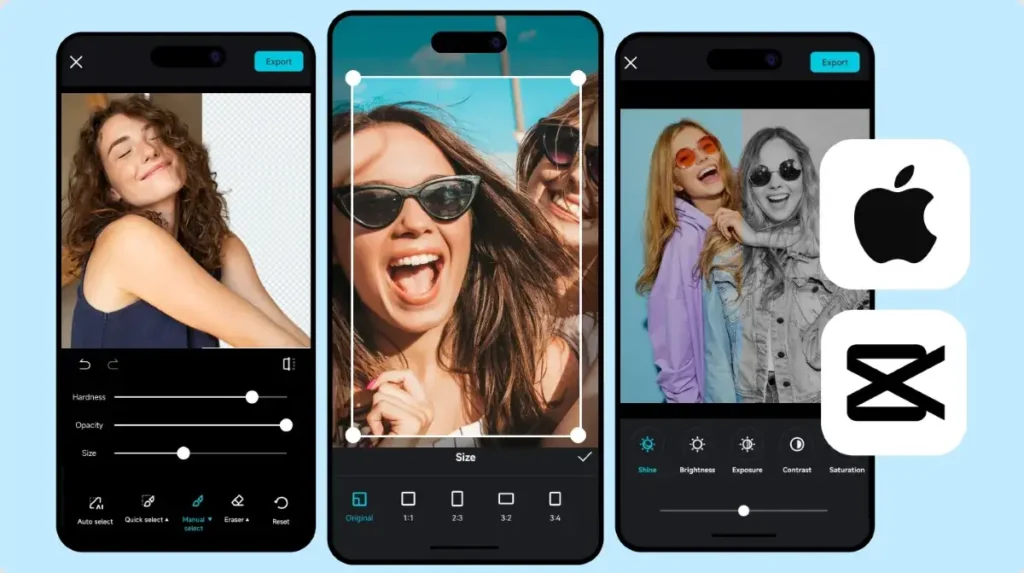
Ask any group of creators which app they’re editing on, and CapCut comes up almost every single time. There’s a reason for that.
What I like about CapCut is it doesn’t make you choose between “easy” and “powerful” — you kind of get both. If you’ve never opened an editing app in your life, you can still pump out a decent-looking video in under 10 minutes. But if you know what you’re doing, there’s keyframing, masking, AI tools (perfect if you want to make viral AI ASMR eating videos), and a real timeline waiting underneath all that simplicity.
It also just feels right on a touchscreen. A lot of editing apps feel like someone crammed a desktop interface onto a phone. CapCut doesn’t have that problem.
Pros
- Beginner-friendly, no learning curve to speak of
- Free version is genuinely generous
- AI auto captions that actually sync well
- Trending transitions and effects (handy if you’re chasing the algorithm)
- Massive music and sound library
- Exports fast and handles 4K
- Gets updated constantly
Cons
- Some of the better effects sit behind a subscription
- A few AI features need an internet connection to work
- Certain templates slap a watermark on your export
Best Features: AI background removal, Auto captions, Motion tracking, Keyframe animation, Slow-motion effects, Beauty filters, Voice enhancement, Stabilization.
My Take: If I had to recommend just one app to someone starting out — or even someone who’s been editing for years but wants something that doesn’t get in their way — it’d be CapCut. YouTube Shorts, Reels, TikTok, personal projects, it handles all of it without a fuss (which is crucial if you are looking into how to make money on Instagram Reels in 2026).
2. iMovie — Still the Best Free Option, No Catch
Best for: Beginners, students, families, casual creators.
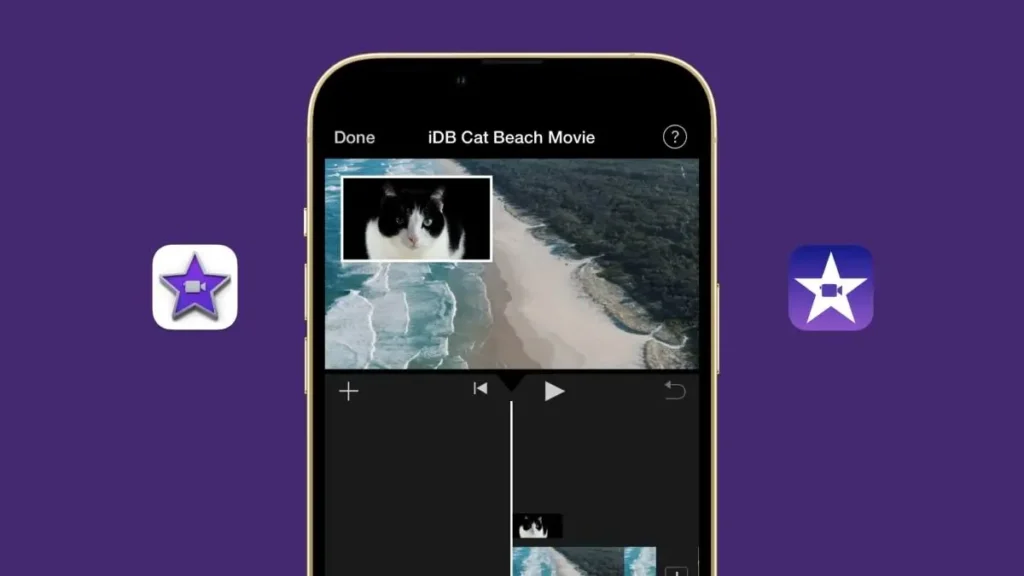
Here’s something a lot of people forget — your iPhone already comes with a solid editor built right in. Apple’s iMovie isn’t trying to compete with the professional apps on this list, and honestly, it doesn’t need to. What it does, it does cleanly.
The drag-and-drop timeline feels natural. It talks to Photos and iCloud without you having to think about it. And for the kind of editing most people actually do — a travel video, a school project, a quick family clip — iMovie is more than enough.
Pros
- Completely free, no asterisk
- Zero ads
- No watermark, ever
- Plays nice with the rest of your Apple devices
- Runs smooth and supports 4K
Cons
- Don’t expect advanced effects
- No keyframe animation
- Transition options are limited compared to others on this list
- Text customization feels basic
Best Features: Magic Movie mode, Storyboard templates, Green screen support, Cinematic mode editing, Decent transitions for a free app, Built-in soundtracks.
My Take: If subscriptions and watermarks annoy you (same here), iMovie remains one of the easiest, no-strings-attached ways to edit on an iPhone. It’s not flashy, but it gets the job done — especially if you’re just getting started and don’t want the learning curve of something heavier.
3. LumaFusion — The Closest Thing to Desktop Editing on Your Phone
Best for: Professional filmmakers, journalists, content creators, anyone doing serious work.
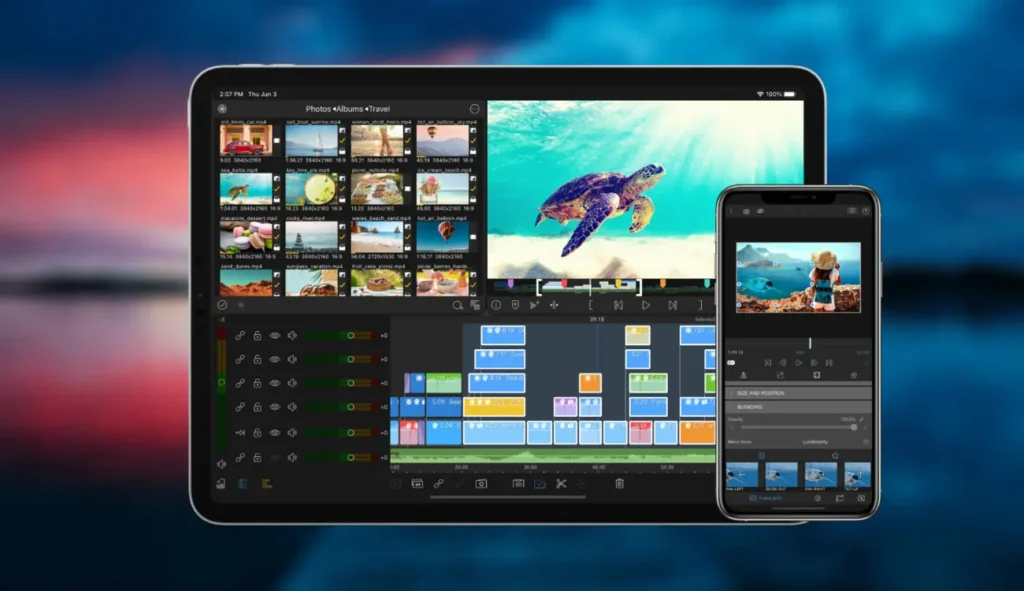
If you’ve ever wished you could just leave your laptop at home and still pull off a real edit, LumaFusion is probably the answer. Most mobile editors are built around quick social clips. This one isn’t. It’s built for people working on documentaries, longer YouTube videos, client projects — the kind of stuff that needs an actual workflow, not just trendy transitions.
The multi-track timeline, the audio mixer, the color tools — it genuinely feels like desktop software that happens to run on an iPhone. I won’t lie, there’s a learning curve here. It’s not an app you open for the first time and instantly “get.” But once it clicks, you’ll see why so many pros swear by it.
Pros
- Real multi-track timeline (up to 6 video, 6 audio)
- One-time purchase, no recurring subscription
- Color correction tools that actually go deep
- Proper audio editing, not an afterthought
- Works with external storage
- Handles big, heavy projects without choking
- Clean 4K exports
Cons
- No free version — you’re paying upfront
- Takes time to learn
- Honestly more app than most casual users need
Best Features: 6 video + 6 audio tracks, Keyframe animation, Advanced transitions, Audio ducking, Color grading, External drive editing, XML project export, Proper title editor.
My Take: If you’re serious about your craft and don’t want to lug a laptop around just to finish an edit, LumaFusion is worth every bit of the upfront cost. It’s one of the few apps on this list that genuinely earns the word “professional.”
4. VN Video Editor — Free, No Watermark, No Catch
Best for: Students, YouTubers, vloggers, anyone editing on a budget.
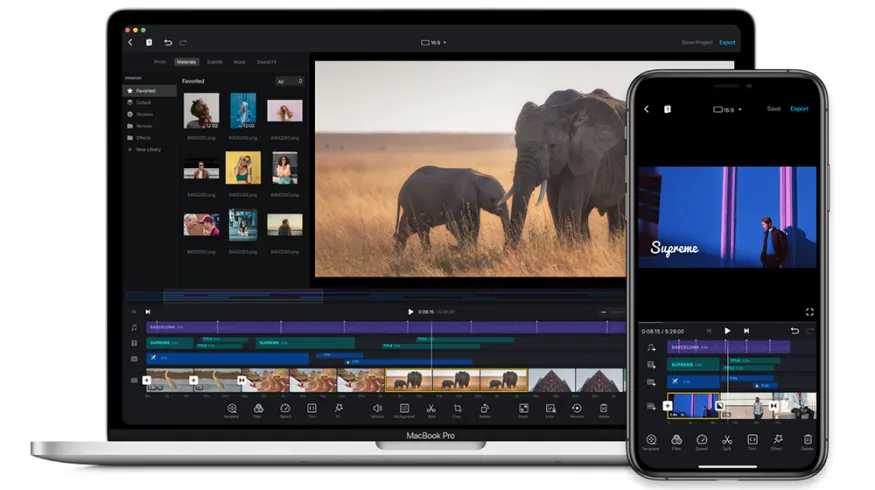
VN has quietly become a favorite among creators who don’t want to pay a monthly fee just to remove a logo from their video. And that’s exactly what a lot of free apps do — lock the good stuff behind a paywall and slap a watermark on everything else.
VN doesn’t play that game. Multi-track editing, keyframes, speed ramps, filters, transitions, text animation — it’s all there, free, no watermark in sight. I was honestly a bit surprised the first time I used it. The interface stays simple enough that a beginner won’t feel lost, but there’s enough control underneath for people who actually know what they’re doing.
Pros
- Completely free and no watermark
- Multi-layer editing and keyframe animation
- Runs smoothly and exports in high resolution
Cons
- Effects library is smaller than CapCut’s
- Not much in the way of AI tools
- Occasionally buggy right after an update
Best Features: Curve speed adjustment, Custom transitions, Green screen, Picture-in-picture, Motion effects, Auto save, Flexible timeline.
My Take: If you want your videos to look like you spent money on editing software — without actually spending any — VN is one of the best video editing app for iphone you’ll find right now.
5. Adobe Premiere Rush — For Anyone Already Living in the Adobe Ecosystem
Best for: YouTubers, freelancers, marketers, anyone already using Adobe.
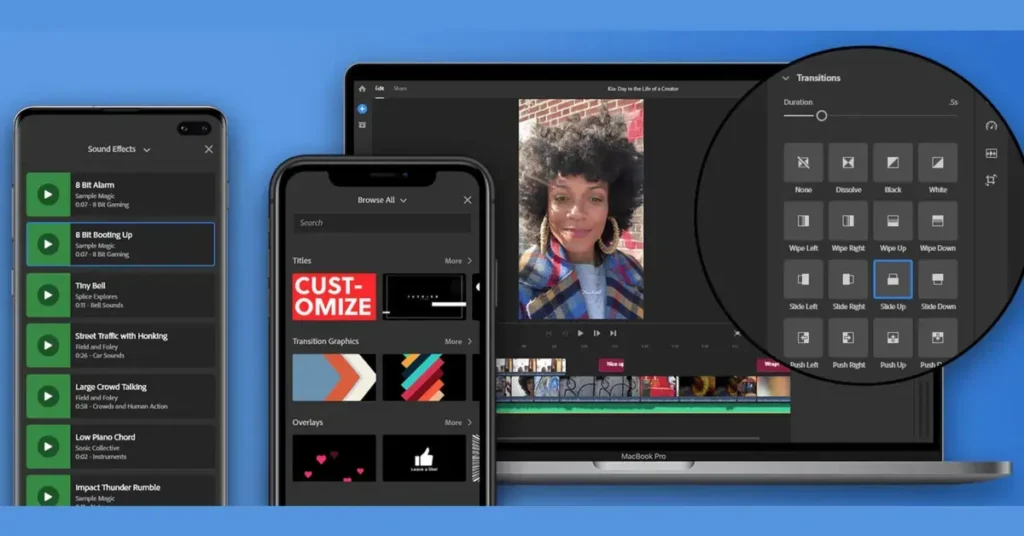
Premiere Rush is basically Adobe saying “we know you’re on your phone, here’s a simplified version of Premiere Pro.” And it works pretty well for that purpose. You’re not getting the full desktop experience, obviously, but you’re getting enough to edit quickly and publish across platforms without much friction.
The real selling point, in my opinion, isn’t even the editing tools — it’s the syncing. Start something on your phone, pick it back up on Premiere Pro later, and your project’s just… there. If your workflow already runs through Adobe, this slots in without you having to think twice about it.
Pros
- Syncs across devices without hassle
- Export quality holds up
- Cloud storage built in
- Timeline editing is straightforward
- Clean, uncluttered interface
Cons
- Free exports are limited
- You’ll need a subscription to unlock everything
- Fewer effects compared to apps like CapCut
Best Features: Automatic cloud sync, Motion graphics templates, Color presets, Audio balancing, Direct publishing to social platforms.
My Take: This one isn’t for everybody. But if Adobe’s already part of your editing life — say you’re cutting longer projects in Premiere Pro on a laptop — Rush fits right into that pipeline instead of forcing you to start fresh.
6. InShot — Built for Reels, Stories, and Nothing Else (And That’s the Point)
Best for: Instagram creators, TikTok users, influencers, small businesses.
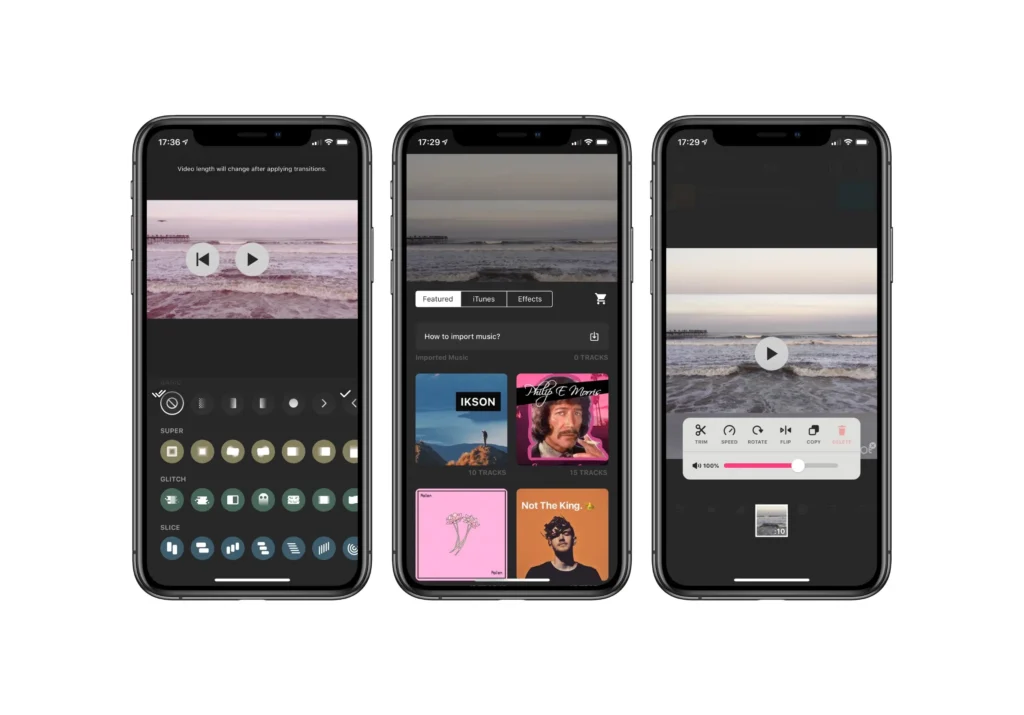
InShot doesn’t try to be everything. It picked a lane — short, vertical, social-first content — and stuck with it. And honestly, that focus is exactly why it works so well.
You’re not wading through a hundred menus to add a caption or drop in some music. The tools you’ll actually use every day — stickers, quick transitions, music, text — are right there, front and center. I’ve used it for quick Reels when I didn’t want to open something heavier, and it gets the job done in minutes, not an hour.
Pros
- Very easy to pick up
- Built specifically for vertical video
- Big sticker library and ready-made social media templates
- Exports fast
Cons
- Watermark on the free version
- Some assets cost extra
- Not much for advanced editing
Best Features: One-tap canvas resizing, Background blur, Video filters, Music library, Animated text, Picture-in-picture.
My Take: If Reels and TikTok are your main game and you just want something fast, InShot is hard to beat. It won’t replace a “real” editor for bigger projects, but for short-form content, it’s one of the quickest tools out there.
7. KineMaster — For When You’ve Outgrown the Beginner Apps
Best for: Intermediate editors, educators, YouTube creators.
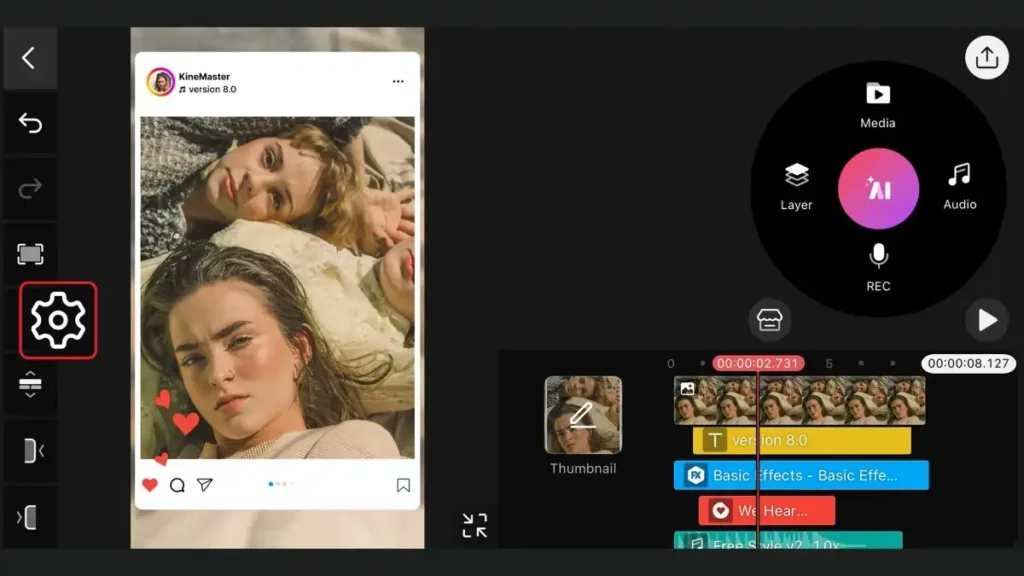
KineMaster has been around long enough that it’s almost a sleeper pick at this point — people forget how feature-rich it actually is. It sits in this interesting middle ground: not as simple as CapCut, not as heavy as LumaFusion, but somehow it manages to pack in tools that even some “pro” apps skip.
Chroma key, frame-by-frame trimming, layer blending — this is the kind of stuff that usually means you’ve graduated past the beginner apps. I’ll admit the interface can feel a little busy the first time you open it, but once you get used to where everything lives, it moves pretty fast.
Pros
- Solid timeline editing
- Chroma key (green screen) support
- Frame-by-frame precision
- Big asset library and layer-based editing
Cons
- Watermark unless you pay
- Most of the good assets are locked behind a subscription
- Can feel overwhelming if you’re brand new
Best Features: Multi-layer editing, Audio mixer, Reverse video, Speed ramping, Voice recording, Built-in asset store.
My Take: KineMaster is for the in-between crowd — creators who’ve outgrown the basic apps but aren’t quite ready (or willing) to commit to something like LumaFusion. It gives you more control without the steeper learning curve.
8. Canva — Not Built for Filmmaking, Built for Getting Content Out the Door
Best for: Small businesses, marketers, educators, entrepreneurs.
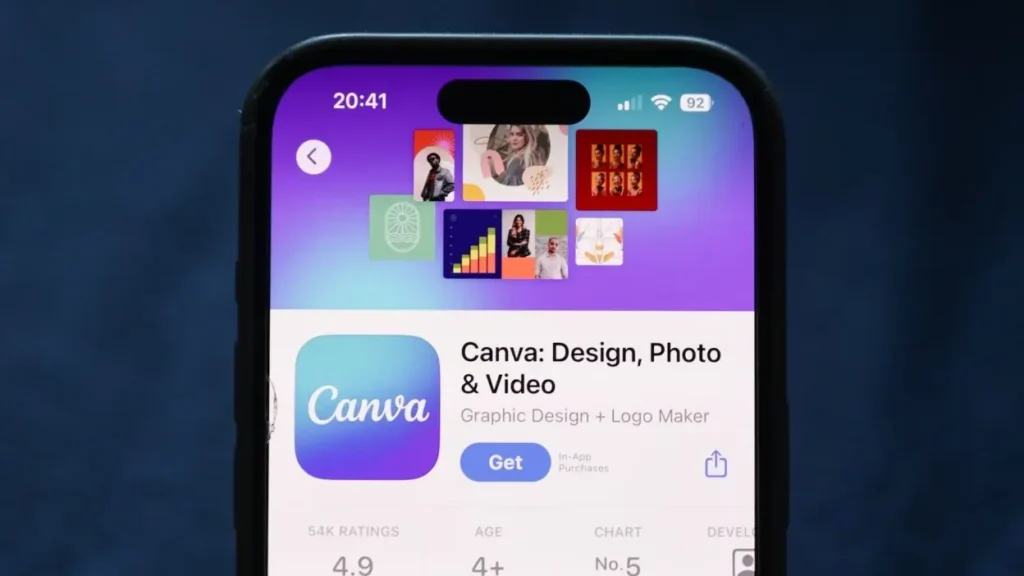
Most people know Canva for graphic design, and fair enough — that’s where it started. But the video side has come a long way, and I think a lot of people are still sleeping on it.
What Canva’s video editor does really well is templates. Thousands of them. If you need a promotional video, an ad, a social post, or a presentation and you don’t have hours to spend designing from scratch, Canva basically hands you the structure and lets you fill in the blanks. It’s less about cinematic editing and more about getting branded content out the door quickly.
Pros
- Huge template library
- Easy drag-and-drop editing
- Built for team collaboration
- Brand Kit keeps everything consistent
- Beginner-friendly
Cons
- Not much for advanced editing
- Works best with an internet connection
- Better suited to marketing than actual filmmaking
Best Features: Video templates, Stock video library, Brand management tools, Text animations, AI-powered design tools.
My Take: If your goal is “get a polished, on-brand video out today” rather than “craft something cinematic,” Canva is genuinely one of thebest video editing app for iphone for the job — just don’t expect it to replace a real video editor for anything creative.
Best Video Editing App for iphone Based on What You Actually Do
Not everyone needs the same app, and honestly, I think that’s the part most “best of” lists get wrong — they hand you one winner and call it a day. Here’s how I’d break it down based on what you’re actually trying to create.
If You’re Just Starting Out → iMovie
If this is your first time editing anything, start here. No ads bugging you, no watermark, and Apple’s clearly designed it to just work with your iPhone without you fighting the software. Go with iMovie if you’re:
- Editing family videos
- Still learning the basics
- Putting together school projects
- Uploading simple YouTube videos
- Trying to avoid subscriptions altogether
Best Overall, No Contest → CapCut
If you only download one app off this entire list, make it CapCut. It’s the rare app that balances “easy enough for a beginner” with “powerful enough for someone who’s been editing for years” — AI tools, keyframes, auto captions, trending effects, all in one place.
Best for Professional Creators → LumaFusion
Once your projects start getting more complicated — longer runtimes, multiple cameras, client work where “good enough” isn’t actually good enough — LumaFusion is where you end up. What pros keep coming back for:
- A real multi-track timeline
- An audio mixer that doesn’t feel bolted on
- Color correction with actual depth
- Keyframe animation
- External storage support
- High-bitrate exports
Best Free App, Hands Down → VN Video Editor
Here’s my honest gripe with most “free” editing apps — they’re free until you actually need something useful, and then suddenly there’s a watermark or a paywall standing in your way. VN just… doesn’t do that. You get multi-track editing, keyframes, picture-in-picture, green screen, and 4K export with no watermark, on any of it.
Best for YouTube Creators
YouTube isn’t one type of video — a gaming clip and a 20-minute documentary need completely different tools.
- CapCut — works well for YouTube Shorts, tutorials, tech reviews, gaming clips, and vlogs.
- LumaFusion — better suited for long-form videos, documentary-style editing, client work, and anything that needs a “professional” finish.
- Adobe Premiere Rush — makes the most sense if you’re already editing your longer videos in Premiere Pro on a laptop and want your phone projects to sync straight into that same workflow.
Best for Instagram Reels & TikTok
Short-form is a different game entirely. You need speed, trending effects, and captions that don’t look like an afterthought. My picks here, in order:
- CapCut — best all-rounder for short-form, especially with its AI captions and trending transitions.
- InShot — fastest if you just want to throw something together in 5 minutes.
- VN Video Editor — best if you want that extra polish without paying for it.
Best for Small Businesses
If you’re running a small business, your video needs probably look different from a typical creator’s. You’re likely after product videos, promotional reels, customer testimonials, or social media ads. Canva is my pick here, and it’s not even close. The combination of video editing, branding tools, and templates optimizes for “looks professional and on-brand, fast,” not for cinematic flair.
A Few Things That’ll Improve Your Videos More Than Any App Will
Here’s something I’ve learned the hard way — no editing app, no matter how good, can save footage that wasn’t shot well in the first place. Before you even open one of these apps, a few habits will make a bigger difference than any feature on this list.
Shoot in 4K Whenever You Can Storage permitting, always go for the higher resolution. It gives you way more breathing room later — cropping, stabilizing, zooming in during the edit — without the footage falling apart. (You can learn more about adjusting your iPhone video settings here).
Stop Recording One Long Clip I get it, it feels easier to just hit record once and let it run. But shorter clips give you so much more flexibility when you’re piecing together the final edit. You can rearrange, cut, and pace things way more easily than trying to chop up one giant file.
Light Matters More Than Effects Honestly, good lighting will do more for your video than any filter or effect you add later. If you can, film near a window or get outside during soft daylight. It’s free, and it works.
Go Easy on the Transitions A clean cut almost always looks more professional than a flashy wipe or spin effect. Save the fancy transitions for moments that actually need them — using them everywhere just makes your video look busy.
Always Add Captions A huge chunk of people watch videos with the sound off, especially on social media. Captions aren’t optional anymore if you want people to actually stick around and watch.
Keep Your Footage Organized This one sounds boring, but it saves so much time — create albums in your Photos app before you even start editing. Hunting for the right clip in a sea of unsorted footage is one of the most annoying parts of editing, and it’s completely avoidable.
Final Thoughts
At the end of the day, there’s no app on this list that’s “the best” for everyone — and I’d be lying if I told you otherwise. The right pick really comes down to what you’re actually making.
If you’re just getting your feet wet, start with iMovie and don’t overthink it. If you want one app that handles pretty much everything well, CapCut is the one I keep coming back to myself. And if you’ve reached the point where you’re editing serious, longer-form projects, LumaFusion is worth the upfront cost — you’ll feel the difference the first time you use it.
Don’t fall into the trap of downloading five apps and bouncing between them either. Pick one based on what you actually create, spend a week or two getting comfortable with it, and you’ll get better results than someone juggling three “better” apps they barely know how to use.
Which one are you going to try first? Drop a comment and let me know — and if you’re already using one of these, I’d love to hear what’s working (or not working) for you.
2 thoughts on “8 Best Video Editing App for iPhone (2026): Free & Paid Picks Compared”